How to Visualise "Better Streets" Using Gemini AI
A Guide for Advocates
Sometimes it’s hard for people to imagine how a street could look different. Traditionally, creating these visualisations is expensive, time-consuming, and requires specialist design skills.
With Gemini, you can create "vision sketches" in minutes. While they aren't engineering-perfect, they are powerful tools for starting conversations and showing the potential of a space.
What You Need
A smartphone or computer with internet access.
A clear photo of the street you want to transform.
Access to Gemini.google.com (via the app or browser) with a gmail account.
Step 1: The "Before" Photo
Take a clear photo of the street.
Tip: Try to take the photo during the day with good lighting.
Tip: Stand safely on the footpath or a crossing to get a perspective that shows the road width and current infrastructure.
Step 2: Upload and Start with Structural Changes
Upload your photo to Gemini and give your first instruction. Start with the biggest physical changes you want to see (road geometry, crossings, lane reductions).
Example Prompt:
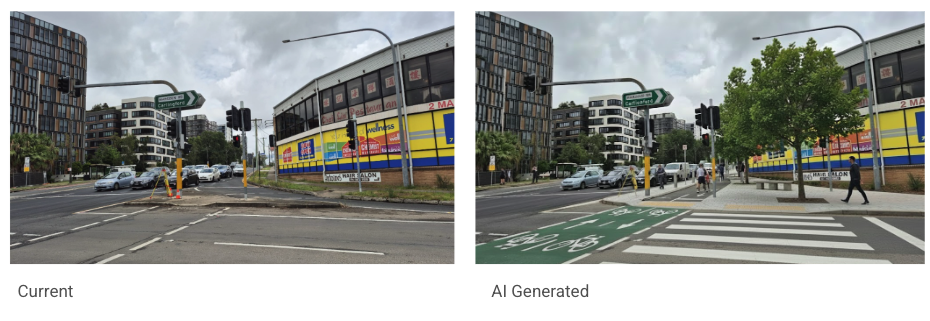
"Make the crossing narrower so the person has a shorter distance to walk. Create an elevated crossing. Make it better for people walking."
Why this works: It tells the AI the intent ("shorter distance", "better for people") not just the object.
Step 3: Layer the Infrastructure (The "Conversation")
Don't try to do everything in one prompt. Treat Gemini like a junior designer sitting next to you. Give it feedback to refine the image step-by-step.
Remove cars & reclaim space:
"Remove the turning lane and make a pleasant space maybe with a tree or a cycleway."
Add transit & greening:
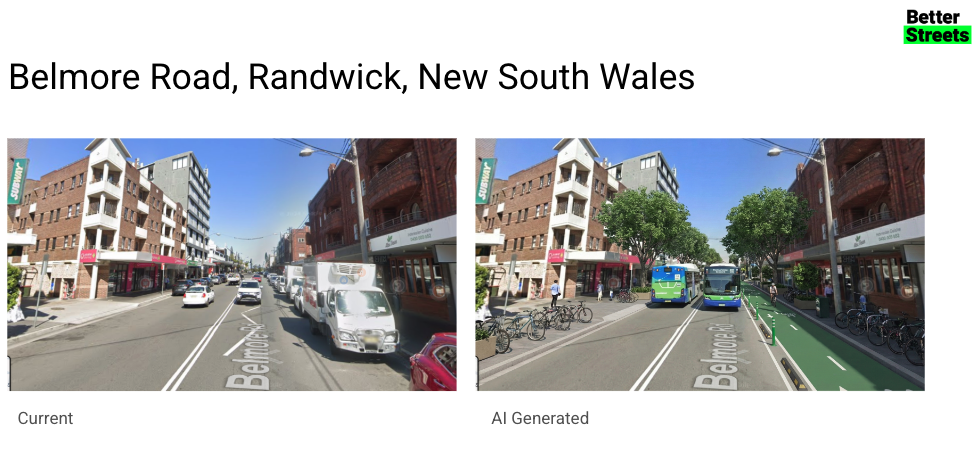
"Update this so the street is only 2 lanes of traffic, add an electric bus, more trees, wider footpath, bicycle parking, a bi-directional cycleway."
Step 4: Refine the Details
Once the big pieces are in place, look at the details. Is the bike parking blocking the path? Is the cycleway clear? Ask for specific tweaks.
Example Prompt:
"Make the bicycle parking on the right take up less space on the footpath. Make the bike parking on the left a shared docked bike system."
Step 5: Set the "Vibe" and Use Cases
Infrastructure is boring without people. Describe how you want the street to be used. This is great for "School Streets" or community hubs.
Example Prompt:
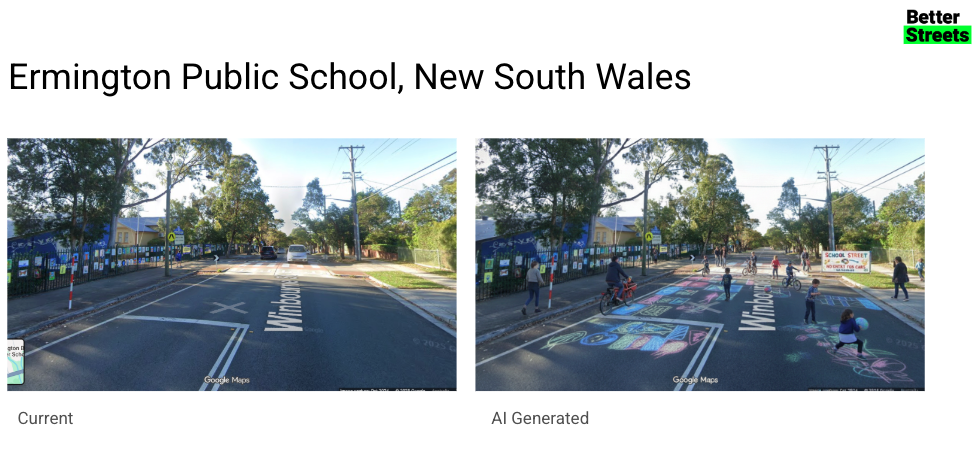
"Convert this into a school street, where kids are playing on the street, no cars, kids on bikes, kids happy playing. Parents riding bikes with kids to school or walking."
Add Life: "More kids playing and more colour on the pavements."
Add Narrative: "Add a new open school gate... include kids and parents to walk through."
Step 6: Troubleshooting & Polishing
Sometimes the AI gets it wrong (e.g., putting a person in the middle of a bike lane or a fence blocking a path). Just tell it to fix the specific mistake.
Example Prompt:
"Move the fence so it's not blocking the footpath..."
"Update the person crossing the road to be walking on a footpath."
Pro-Tips for Better Prompts
Be specific with nouns: Instead of "make it nice," say "add a timber bench," "plant a jacaranda tree," or "install separated cycleway separators."
Iterate, don't restart: If the image isn't quite right, reply to the same chat saying "Keep that design, but change X."
Use "Inpainting" (if available): Some versions of Gemini allow you to highlight a specific part of the image to change, which is helpful if you want to keep the background buildings exactly the same.
Focus on the feeling: Use words like "safe," "welcoming," "shaded," and "accessible."
The Result
You go from a car-dominated gragreyy street to a vibrant, green, people-focused place in about 5 minutes. Use these images in council meetings, community WhatsApp groups, and on social media to help people visualize the change.